

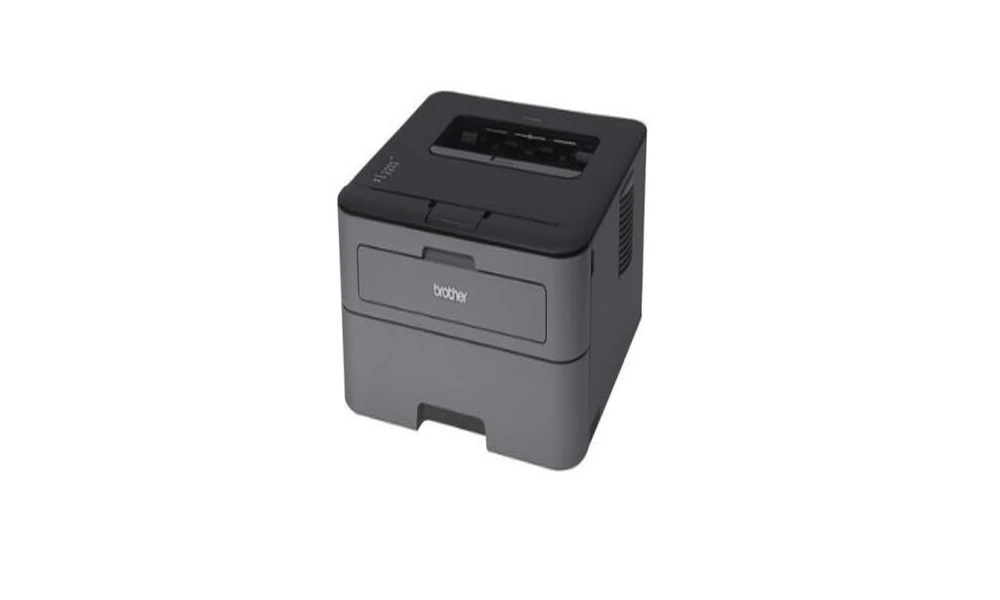
Brother printers fill a specific niche in the market with reliable monochrome lasers, color lasers, and multifunction machines aimed at home offices and small businesses. The HL series covers single function laser printers, the MFC series adds fax and full multifunction capability, and the DCP series sits between as print, scan, and copy machines without fax. Each line has its own documentation, and Brother manuals tend to be thorough, covering features that other brands leave undocumented. This guide explains how to find and use Brother manuals effectively.
Identifying Your Brother Model
Brother model numbers follow a consistent pattern that tells you a lot about the machine before you read a single page. HL means a single function laser. MFC is a full multifunction. DCP is a multifunction without fax. The letter L indicates a laser based color model, and the letter J indicates an inkjet. The numbers that follow describe the feature tier, with higher numbers generally meaning more memory, more advanced scanning, and higher monthly duty cycles.
A complete archive of Brother printer manuals makes it easy to compare two models side by side or to find documentation for a discontinued unit that is still in active use.
Initial Setup and Driver Installation
Brother manuals start with a careful unpacking guide. Each laser model ships with protective film, shipping locks on the toner cartridge, and packing materials inside the paper trays that need to be removed before the first print. The manual lists each piece in the order it should come out.
Driver installation on Brother machines is straightforward, but the manual explains the differences between the Full Driver Package and the Basic Driver depending on whether you need scanning utilities and fax software. For network connected models, the manual covers both DHCP and static IP configuration through the control panel.
Multifunction Features in the MFC and DCP Manuals
Brother multifunction documentation is particularly thorough. The scan section covers scan to file, scan to email, scan to FTP, scan to network folder, and scan to mobile device. Each option has step by step instructions and the menu paths required to set up an address book of common destinations.
Workflow tip: Many Brother MFC models support one touch shortcut buttons that scan, copy, or fax with preset settings. Setting these up takes a few minutes and turns daily tasks into single button operations.
The fax section, where applicable, covers transmission settings, polling, broadcast lists, and secure receive mode that holds incoming faxes in memory until released by a code.
Toner, Drum, and Maintenance
Brother lasers separate the toner cartridge from the drum unit, which can be confusing for owners coming from brands that combine them. The manual explains which part needs replacement at which intervals and clarifies the typical drum life of around twelve to twenty five thousand pages depending on the model. Replacing the drum requires resetting a counter through the menu, and the manual lists the exact button sequence.
The maintenance section also covers cleaning the corona wire on older models, cleaning the drum unit if streaks appear, and the page count display that shows expected remaining life on each consumable.
Mobile Printing and Cloud Features
Modern Brother machines support iPrint and Scan on iOS and Android, Apple AirPrint, Mopria on Android, and direct connection to Google Drive, OneDrive, Dropbox, and Evernote through Brother Web Connect. The manual walks through registering the printer with each service and saving credentials for one touch upload.
These features turn a basic office printer into a tool that can scan documents directly to cloud storage without involving a computer.
Troubleshooting and Error Codes
Brother machines use both text messages and short error codes to communicate problems. The manual translates each into plain language and lists the recommended action. A Drum Stop message, for example, means the drum unit needs replacement and continued printing will produce low quality output until it is replaced.
Paper jams have a dedicated visual guide showing where to open the machine and how to safely remove jammed paper. Brother manuals are unusually detailed in this area, with photos that show the exact location of each cover and lever.
Documents for Discontinued Brother Models
Brother supports many printers for years after release. Older models eventually drop from the official support site, but the documentation does not disappear. Independent archives like manualmachine.com keep manuals for hundreds of discontinued Brother printers available for download. A ten year old HL 2270DW or an older MFC 9130CW still has its complete documentation ready to view.
For offices that maintain a fleet of Brother machines spanning several generations, this kind of archive is invaluable. Replacement parts are still available for many older units, and the original maintenance instructions remove the guesswork from servicing them.
Final Thoughts
Brother printer manuals reward careful reading. Setup is cleaner, scanning and faxing features become accessible, toner and drum life lasts the full rated cycle, and troubleshooting becomes a methodical process. Find the exact model number on your unit, locate the matching guide in a documentation library, and keep it bookmarked for the next time you need it. A Brother printer with its manual at hand is a far more capable tool than the same printer used by guess and feel.
